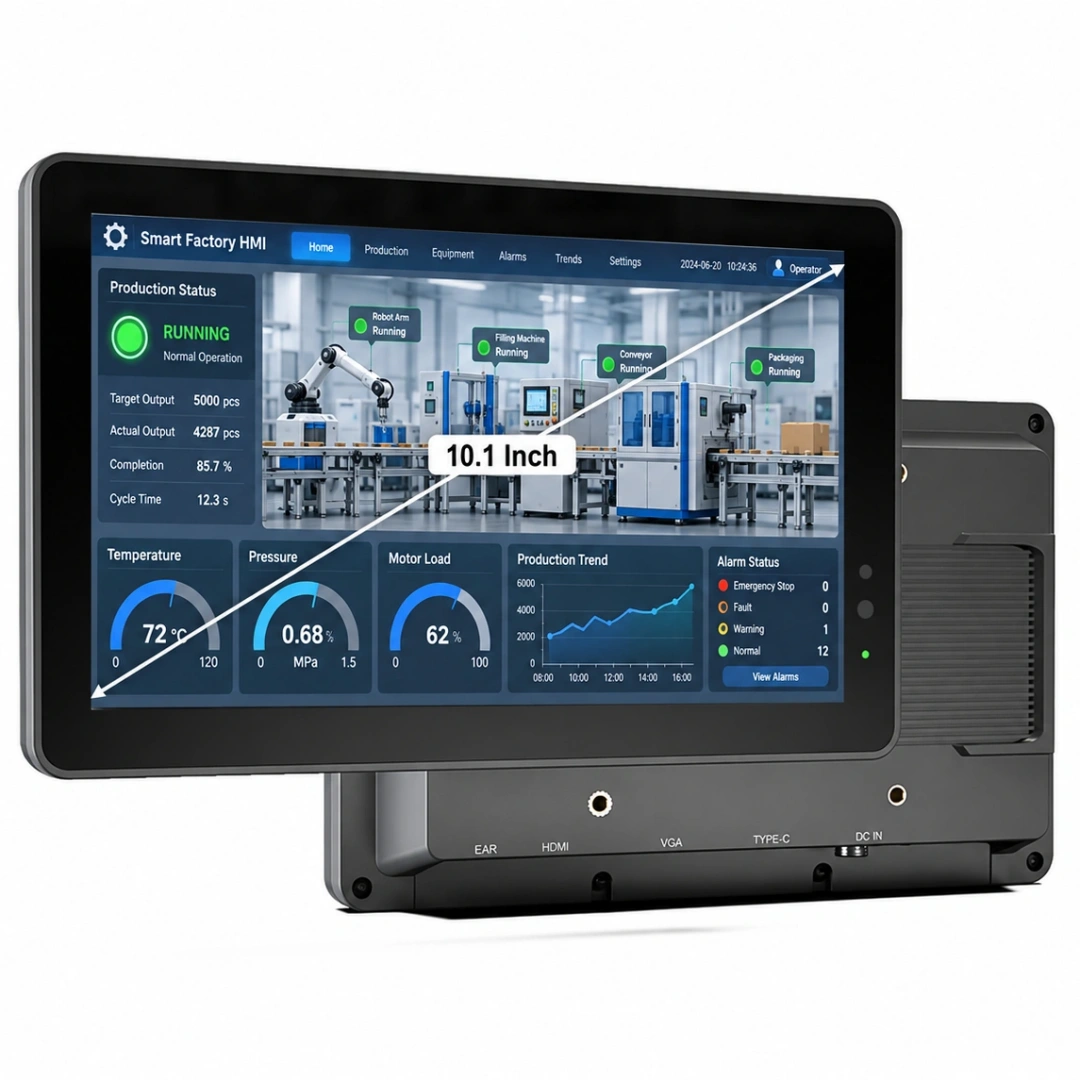
A keyboard wedge presents decoded scanner data as keyboard-style input to a compatible, focused application field. This often avoids a dedicated scan API for simple forms, while still requiring checks for field focus, keyboard layout, permissions, and application behavior.

Keyboard-wedge behavior depends on the device service, configuration, and host application.
Key Takeaways
- A keyboard wedge makes barcode data look like normal typing to any active application. WMS, MES, browser forms, and terminal emulators all receive keystrokes without needing a dedicated barcode API. Keyboard wedges allow barcode scanners to input data as keystrokes, which is why they are widely used in various industries for data entry tasks-including retail POS, inventory management, and healthcare.
- Modern “keyboard wedges” are usually USB HID barcode scanners or keyboard wedge software tools, not legacy PS/2 hardware. USB HID is a common modern keyboard wedge technology that allows plug-and-play functionality. Software keyboard wedges translate device signals into keystrokes from serial, Bluetooth, or TCP sources.
- Wedges are ideal when teams need simple, one-label-per-field data input without code changes. They are weaker for complex parsing, validation, or multi-field capture. Keyboard wedges are used to improve data entry speed and accuracy by eliminating manual transcription errors, but focus dependency is a real limitation-data goes wherever the cursor sits.
- KCOSIT supplies rugged hardware with specific scan-engine options. Confirm the available input modes, device scanning service, and supported application path for the quoted configuration before choosing wedge, serial, or SDK integration.
What Is a Keyboard Wedge Barcode Scanner?
A keyboard wedge is hardware or software that converts barcode (or other device) data into standard keyboard keystrokes, indistinguishable from manual typing for the target application. From the host system’s perspective-whether it is a WMS, MES, ERP, or web form-the scanned input is just keypresses. No dedicated barcode API, vendor SDK, or special plug-in is required.

Hardware keyboard wedges are physical devices placed between data collection devices and computers. The original PS/2 wedges from the 1990s and early 2000s sat between a PC’s keyboard port and a barcode scanner, merging both signal streams into one connector. Hardware keyboard wedges were common before USB connections became standard, and they typically do not require custom drivers or software installations.
Today, most USB barcode scanners enumerate as USB HID keyboard devices, effectively acting as built-in keyboard wedges without separate hardware. Many Android and Windows rugged devices use this mode. Beyond USB HID, keyboard wedge software (a virtual keyboard wedge) listens to serial, Bluetooth, TCP/IP, or USB HID input and then injects data as simulated keystrokes into the focused application window. Software wedges can provide advanced data formatting capabilities compared to hardware wedges, making them useful when data needs preprocessing before reaching the target field.
Keyboard wedges can support various input devices, including barcode scanners, RFID readers, scales, and gauges. From the application’s point of view, the input is completely application-agnostic-keyboard wedges eliminate the need for complex programming or upgrades.
How Scanned Data Reaches the Active Application
Understanding the data path is critical for troubleshooting why a scan might end up in the wrong field or wrong application window.
For a USB HID keyboard-wedge scanner, the flow works like this:
- Operator pulls the trigger (or software initiates scan).
- Scanner optically decodes the barcode into a payload string.
- Device firmware converts each character into HID key codes (press and release events).
- The operating system routes those key codes to the window and control with current keyboard focus.
- Text appears in the active field, exactly as if someone typed it.
Keyboard wedge software follows a similar path but first receives data from a COM port, TCP socket, or Bluetooth channel and then injects synthetic keystrokes into the OS input queue.
The cursor must be in the correct text field for keyboard wedges to function properly. Focus dependency is a limitation of keyboard wedges-if a picker’s cursor is left in the wrong input box, or a background pop-up steals focus, the scanned data can fill the wrong form or even trigger unintended hotkey actions. In warehouse and manufacturing deployments, teams should lock down workstation layouts where practical: run a single full-screen WMS or MES session and minimize background applications to reduce focus-related errors.
Some wedge tools can optionally prepend or append special keys like Enter or Tab after each scan, forcing the cursor to move to the next field or submit a form. Detailed configuration of those suffixes is outside this article’s scope, but the concept is essential to understand when planning field navigation.
Keyboard Wedge, Serial Input, and SDK Integration Compared

System integrators choosing a data input method for barcode workflows typically evaluate three approaches: keyboard wedge, direct serial, and SDK-based integration. The right choice depends on application complexity, need for scan metadata, development resources, and deployment timeline.
| Factor | Keyboard Wedge (HID) | Serial (RS-232 / Virtual COM) | SDK Integration |
|---|---|---|---|
| Host software changes | None | Middleware or app modification | Custom development required |
| Scan metadata (symbology, errors) | Not available | Available via parsing | Full structured events |
| Compatible applications | Any app that accepts keystrokes | Apps with COM port support | Apps built with vendor SDK |
| Multi-barcode / GS1 parsing | Limited | Moderate (with middleware) | Strong |
| Deployment speed | Extremely easy, fast | Moderate | Slower |
Typical use cases for each method:
- Wedge: Extending an existing green-screen or web-based system without code changes, or running quick pilots where IT cannot modify the program in time.
V750 product photograph. Confirm the device scanning service and available input modes for the ordered configuration.
Serial: Feeding serial devices or multiple devices into middleware, or when deterministic parsing is essential. Kcosit’s R54W rugged Windows field tablet lists RS232 support on its product page for such workflows.
- SDK: Building a dedicated mobile app that must control scan behavior, enforce business rules, or capture multi-barcode labels.
The optional Zebra SE4710 configurations in the V750 and G11X establish scan-engine choices. They do not independently establish all three host input paths; obtain the device-level integration documentation and test the target application.
Field Focus, Keyboard Layout, and Special Characters
Because wedges treat barcode data as keystrokes, they are directly affected by which field has focus, what keyboard layout is active, and how special keys are interpreted by the host system.
Field focus means that when a picker scans, the active field might be an item ID box, a quantity cell, a search bar, or even a hidden login prompt. Operators and users must see a clear, consistent cursor location before scanning.
Keyboard layout mismatches cause silent data corruption. Since HID keyboards send key codes (positions rather than characters), the OS locale translates codes into characters. If a scanner is configured for US English but the PC runs a German QWERTZ layout, punctuation like decimal points, dashes, and slashes can be transformed, breaking part numbers or lot IDs. Industrial teams should standardize on one keyboard layout per site and ensure scanner profiles match across PCs, thin clients, laptops, and rugged tablets.
Special characters commonly used with keyboard wedges include:
- Enter or Return to submit a form or confirm input
- Tab to jump to the next field in a desktop or web form
- Function keys or control sequences used as shortcuts in terminal emulators
Test scenarios should cover problematic data: leading zeros, trailing spaces, non-printable delimiters, international characters, and GS1 separators. Confirm that the wedge path preserves codes exactly as required by downstream systems.
When Keyboard Wedge Is a Good Fit for WMS and MES

Keyboard wedges remain a practical choice for many inventory management and manufacturing workflows when used under the right conditions.
Scenarios where wedges work well:
- Simple barcode-to-single-field entry: scanning an item ID, location, or license plate into a single text box
- Browser-based WMS or MES clients where direct API or SDK integration is not available
- Legacy terminal emulation sessions (VT, 5250, 3270) where scanners must mimic manual typing
- Quick pilots where the back-end cannot be modified in time
A supported HID or software-wedge configuration can deliver decoded data as keyboard input. Built-in engines may depend on a device scanning service. Confirm the actual setup and measure the site workflow rather than applying an unrelated vendor’s productivity percentage.
Key limitations to watch:
- Difficult to distinguish between user-typed data and scanned input
- No structured scan events or symbology metadata for advanced logic
- More fragile when screen layouts change, because the workflow relies on cursor position
For workflows requiring multi-barcode capture, parsing complex GS1 strings into multiple fields, or enforcing strict business rules at scan time, serial or SDK-based integration is usually more robust. Treat keyboard wedge as one option in a broader data transfer strategy-often starting with wedge for speed and evolving to deeper integration for large-scale, long-term deployments.
A Deployment Test Checklist for Industrial Applications
Before any keyboard wedge deployment goes live in a warehouse or factory, run these acceptance-test procedures. Focus on process, not performance numbers-every environment is different.
1. Basic Functionality Test
- Confirm the connected device (USB HID scanner or keyboard wedge software) is recognized by the OS as a keyboard input source.
- Open a simple text editor on each target device. Scan a set of sample barcodes. Verify that decoded text appears exactly as expected-correct characters, no missing or extra data.
- Check that configured suffixes (Enter, Tab) or prefixes are present and behave as intended.
2. Field Focus and Navigation Test
- In the actual WMS or MES client, identify each screen where scanning will occur.
- Document the expected starting field and subsequent cursor movement after each scan.
- Have operators perform scans while intentionally opening notifications or background dialogs to confirm focus does not silently shift away from the main form.
3. Keyboard Layout and Special Character Test
- Confirm each workstation, thin client, and rugged tablet uses the correct system keyboard layout and configuration.
- Scan barcodes containing punctuation, decimal separators, and locale-sensitive symbols required by the workflow.
- Verify that GS1 or other structured codes preserve control characters and separators needed by downstream systems.
4. Multi-Device and Environment Interoperability Test
- Run the same scan set across all device types (desk PCs, rugged tablets, mobile computers) to check for identical behavior.
- Test wedge input in remote desktop sessions, browser-based SaaS, or virtual desktop infrastructure. Watch for latency and dropped keystrokes.
- Include physical environment checks: near forklifts, in cold rooms, under bright sunlight. Validate that operators can see the cursor and error messages while scanning.
5. Documentation and Change Control
Document the final approved configuration-scanner model, firmware version, OS version, keyboard layout, prefix/suffix settings, and WMS/MES screen flows. Keep this under version control so future OS updates or application changes can be re-tested using the same integration checklist.
Selecting Devices and Software for Keyboard Wedge Workflows
Choosing the right balance of rugged hardware and keyboard wedge software determines whether a deployment runs efficiently or creates ongoing support issues.
Hardware selection factors:
- Availability of USB HID keyboard mode in the scanner or scan engine
- Physical ergonomics: pistol grip handheld vs. slate tablet for the use case
- Ruggedness: IP rating, drop resistance, and temperature range for the target environment (dust, vehicle mounting, cold chain)
- Ports and connectivity: USB, Bluetooth, and serial ports for flexible input paths
KCOSIT offers rugged devices for industrial data collection. The V750 lists optional Honeywell 5703 or Zebra SE4710, and G11X lists optional Zebra SE4710. The available output modes and SDK support must be confirmed for the supplied device image, firmware, and application.
When keyboard wedge software is useful beyond simple USB HID:
- When data must be imported from RS-232 devices, networked scanners, or Bluetooth modules
- When data requires preprocessing, filtering, or reformatting before reaching the target application
- When a single workstation must manage multiple input devices simultaneously and route data differently depending on source
Tools like TWedge connect multiple devices like barcode scanners and scales, and TWedge supports USB, serial ports, TCP, UDP, and Bluetooth connections. TWedge can connect multiple devices simultaneously depending on the license and can operate as a system service without additional tools. TWedge allows customization of data acquisition logic using JavaScript, giving integrators control over how data flows into applications. Similarly, WinWedge automates data collection from scales into Excel for office and production-floor scenarios. Keyboard wedge software can automate data collection from various devices across thousands of deployment points in industries like logistics and manufacturing.
Evaluation criteria for wedge software in B2B environments:
- Compatible with current Windows or Android versions on your fleet
- Ability to restrict which applications receive wedge input
- Logging and diagnostic features to analyze problematic scans
- License and support models that fit fleet-wide deployment across businesses
For broader guidance on selecting industrial barcode readers, consult a dedicated buyer’s guide. This article remains focused on the input architecture and application behavior of keyboard wedges.
To evaluate whether a keyboard wedge fits your workflow, prepare your barcode samples, describe your host application (WMS, MES, browser, terminal emulator), specify expected reading distances and environment conditions, and share those details with your hardware vendor. Kcosit’s team can assess whether wedge, serial, or SDK input paths-and which device configuration-are the right set for your project. Visit the Kcosit website to start a conversation.
Frequently Asked Questions
Can a keyboard wedge differentiate between scanned data and manually typed input?
Standard keyboard wedge modes do not inherently distinguish scans from manual typing, because both appear as keystrokes to the host application. Any differentiation must be implemented using patterns such as prefix characters that the scanner prepends, dedicated hotkey sequences, or application-side logic that detects the rapid burst speed typical of scanned input versus slower human typing.
Is keyboard wedge input suitable for high-speed conveyor or automated scanning?
Keyboard wedge is primarily designed for interactive, operator-driven data capture. For fully automated, high-speed conveyor systems, direct serial, TCP/IP, or SDK-based integrations usually offer more reliable buffering, error handling, and throughput control than keyboard emulation. HID keystroke bursts can overwhelm host applications or drop characters under sustained high-speed scanning.
What happens if a keyboard wedge sends an unexpected key like Enter or Tab?
If a wedge or scanner is configured to send Enter, Tab, or function keys and the active application interprets them as commands, the result can be unintended form submissions, field skips, or even closing a dialog. Review and test all prefix, suffix, and function key settings in every target screen before production use.
Can I use a keyboard wedge over a remote desktop or virtual desktop session?
In most cases, HID-based scanners and keyboard wedge software work through remote desktop and virtual desktop infrastructure because they send keystrokes that are forwarded to the remote session. However, teams should test for latency, unexpected focus changes, and compatibility with their specific RDP, Citrix, or browser-based client. Phone or tablet thin-client apps may handle keystroke forwarding differently than desktop clients.
How should I share my requirements when planning a new keyboard wedge deployment?
Prepare example barcode samples from your actual labels (including any with special characters or GS1 formatting). Describe the host application, specify expected reading distances and physical environment (temperature, lighting, dust), list the devices in your fleet, and note whether you need free-standing or vehicle-mounted operation. Share this information with vendors like Kcosit so that hardware options and input paths can be assessed together for your project.